Is Spicy Chat AI Down? Status, Outages & Troubleshooting Guide (2026)
If SpicyChat AI is not loading, your messages are not sending, or you cannot log in, the problem is usually one of six specific issues — each with a clear fix. This guide covers how to check whether SpicyChat is down for everyone or just you, and walks through the fixes for every common problem.
Is SpicyChat AI Down Right Now?
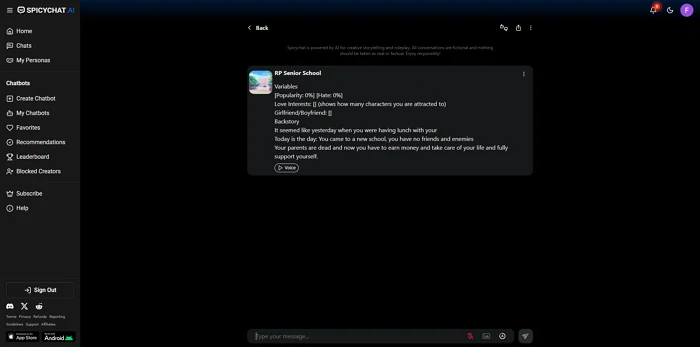
Before troubleshooting your device or account, confirm whether the issue is on SpicyChat's end.
How to check SpicyChat's current status:
- SpicyChat Discord server: The fastest source of real-time outage information. SpicyChat uses its Discord community to announce maintenance windows, ongoing outages, and estimated resolution times. Search Discord or check the server's announcements channel. User reports in the general chat will often surface problems within minutes of them occurring.
- DownDetector (downdetector.com): Search for "SpicyChat" on DownDetector to see user-reported outage data. A spike in reports with a map of affected regions indicates a real service disruption.
- X (Twitter) search: Search "@SpicyChatAI" or "SpicyChat down" on X for real-time user reports. The SpicyChat X account (@SpicyChatAI) posts maintenance announcements.
- isitdownrightnow.com: Enter spicychat.ai to test whether the server is responding. This confirms whether the site itself is reachable from their monitoring infrastructure.
If SpicyChat is confirmed down for everyone: Wait. Platform-wide outages require SpicyChat's engineering team to resolve — nothing on your end will fix it. Check Discord for an estimated resolution time and monitor the status tools above.
If SpicyChat appears to be working for others but not you: The issue is specific to your account, device, or network. Proceed through the troubleshooting steps below.
Common SpicyChat AI Problems & Fixes
Can't Log In
Login failures on SpicyChat typically stem from one of three causes:
Wrong credentials. The most common cause. Use the "Forgot Password" flow to reset your password through your registered email. Do this on the website (spicychat.ai) rather than the app for the most reliable email delivery. Check your spam folder if the reset email doesn't arrive within five minutes.
Account flagged or suspended. If your account was flagged for terms of service violations or unusual activity, login may be blocked without a specific error message. Contact SpicyChat support through the website's help system to inquire about account status.
Session/cookie issue. Clear your browser cookies and cache, then try logging in again. On mobile apps: log out if you can, close the app fully, clear app cache (Android: Settings > Apps > SpicyChat > Storage > Clear Cache), reopen, and log in fresh.
Two-factor authentication issues. If you set up 2FA and your authentication app is not generating valid codes, check that your device's time is synchronized correctly (authentication codes are time-based and fail if device clock is off by more than 30 seconds).
Messages Not Sending / Duplicate Messages
The send button stopping mid-session is one of the most commonly reported SpicyChat bugs. Steps to resolve:
- Refresh the page or restart the app. This clears the session state most of the time.
- Switch to a different character, then switch back. This forces a new conversation session that typically resolves stuck send states.
- Check for queue congestion. On the free tier, peak-hour queues can make the send button appear broken when it is actually waiting in queue. Messages eventually send — the UI just does not communicate the wait state clearly. Try at off-peak hours.
- Clear browser/app cache. Stale cached assets can cause interface malfunction. Clear cache and reload.
- Try a different browser or device. If the issue is browser-specific, switching from Chrome to Firefox (or vice versa) often resolves it.
Duplicate messages (your message appearing twice or the AI's response sending multiple times) are a known bug. There is no user-side fix for this — it is a backend race condition. The workaround is to refresh and continue; duplicate messages can typically be ignored without affecting the conversation.
App Crashing
Update the app first. Many crash bugs are resolved in subsequent releases. Check the App Store (iOS) or Google Play (Android) for updates and install the latest version before proceeding.
Low storage. SpicyChat's app can crash on devices with less than 500MB free storage. Free up space and try again.
RAM limitation. On older devices with 2GB RAM or less, the app may crash due to memory pressure. Closing background apps before opening SpicyChat reduces this risk.
Reinstall. If updating does not resolve crashes: uninstall the app, restart your device, and reinstall from the official store. This addresses corrupted installation files.
Report persistent crashes. If crashes continue after the above steps, report the issue through SpicyChat's Discord or support system with your device model, OS version, and a description of when the crash occurs. Device-specific bugs are often fixed in targeted updates when enough users report them.
Characters Not Responding
If a specific character stops responding or gives empty responses:
- Start a new conversation with the same character. Session-level glitches often resolve with a fresh start.
- Try a different character. If other characters respond normally, the issue is with that specific character's configuration or a backend model issue affecting that character's processing.
- Wait a few minutes. Character response failures sometimes indicate the underlying model is temporarily overloaded for that character type.
- Check if the character is community-created and may have been recently modified or reported — changes to a character's definition can temporarily disrupt active sessions.
Images Not Loading
Images (in conversations on paid tiers, or profile images on characters) may fail to load due to:
- Slow connection. AI-generated images are larger files than text. On slow connections, images time out. Wait or switch to a faster connection.
- Browser ad blocker. Some ad blockers interfere with image delivery from AI platforms. Try temporarily disabling your blocker to test.
- Cache issue. Clear browser image cache and reload.
- Server-side generation failure. Occasionally the image generation request fails on SpicyChat's backend. Reload the conversation — a fresh page load triggers a new generation attempt.
Age Verification Issues
Age verification problems typically fall into two categories:
Verification loop. You complete verification but SpicyChat keeps asking you to verify again. This often indicates a session sync issue — log out completely, clear cookies, log back in, and check whether the verification status has updated in your account settings.
ID upload failure. If your government ID upload through AgeGO or VerifyMyAge fails: ensure the document image is clear, well-lit, and the entire document is visible in the frame. Blurry or partially cropped images fail AI document recognition. Try the video selfie method as an alternative.
Video selfie rejection. Ensure adequate lighting (face clearly visible, no strong backlighting), keep your face still during the recording, and ensure no face covering. If repeated attempts fail, contact the verification provider directly rather than SpicyChat support, as the verification system is managed by AgeGO or VerifyMyAge.
Ready to explore? SpicyChat AI offers free access to 138K+ characters.
Start Chatting Free →SpicyChat AI Maintenance Schedule
SpicyChat does not publish a fixed maintenance schedule — maintenance windows are announced on Discord and X when needed rather than on a regular recurring basis.
When maintenance typically happens: Historically, SpicyChat has performed maintenance during low-traffic hours — late night to early morning US Pacific Time (roughly 2am-6am PST). This minimizes disruption to their predominantly US-based user traffic. Major feature deployments (like the multilingual launch in April 2026) sometimes require extended maintenance windows and are announced in advance.
How to get notified: The most reliable method is joining the SpicyChat Discord server and enabling notifications for the announcements channel. Discord push notifications will alert you before planned maintenance begins. Following @SpicyChatAI on X also provides timely notice.
What Happened to SpicyChat AI?
Users searching "what happened to SpicyChat AI" or "why did SpicyChat change" are usually responding to one of three things:
Content policy tightening (2024-2026): SpicyChat has progressively tightened its content moderation since mid-2024. Content that was previously allowed without interruption began encountering blocks as the platform added additional content filtering layers. This is the most common trigger for users asking "what happened" — the platform behaves differently than it did previously. This appears to reflect a combination of legal compliance requirements (particularly regarding regulated content categories) and app store policy adherence related to the mobile apps.
App store launch (2025): When SpicyChat released its native Android and iOS apps, the platform's profile changed. App store policies imposed constraints on the apps that the web version does not have to the same degree. Some features available on web may behave differently in the apps due to these policies.
Major feature additions (2026): Group chats, lorebooks, Semantic Memory 2.0, multilingual support, and voice interaction all launched in 2025-2026. Users returning after a break find a significantly expanded platform. If SpicyChat "seems different," it may simply be that new features changed the interface and navigation.
FAQ
SpicyChat AI stops working for users for several reasons: platform-wide outages (check Discord and DownDetector to confirm), account-specific issues (password problems, flagged account), device-side issues (outdated app, browser cache, low storage), or free-tier queue congestion during peak hours. Start by checking whether the issue affects all users (DownDetector) or just you. If it's only you, work through the troubleshooting steps above — login issues, app crashes, and send-button failures each have specific fixes.
Minor outages (partial service degradation, slow responses) typically resolve within 15-60 minutes. Full platform outages are rare but have lasted 2-8 hours historically. Major maintenance windows are announced in advance and typically last 1-4 hours. Follow SpicyChat's Discord announcements channel for the most accurate resolution estimates during active outages.
Report bugs through three channels: (1) SpicyChat Discord server — the bug-report channel or general chat where community members can confirm whether others experience the same issue; (2) SpicyChat's in-app feedback system (if accessible); (3) SpicyChat support contact through the website. For app crashes, include your device model, OS version, and app version number. For content bugs (unexpected blocks, character behavior), note the character name and what you were attempting. Bug reports via Discord tend to get faster acknowledgment than support tickets.
No. Maintenance periods suspend the service temporarily but do not delete user data. Conversation histories, characters, account settings, and subscription status are preserved through maintenance windows. If you find missing data after maintenance, clear your browser/app cache and reload — cached states sometimes display stale information until refreshed. If data is genuinely missing after a maintenance period, contact support immediately with details of what is missing.